

How to Connect WordPress to Watchman Tower
- Watchman Tower Team
- Updated: October 2, 2026
- Category: WordPress Monitoring
- Read Time: 11 min
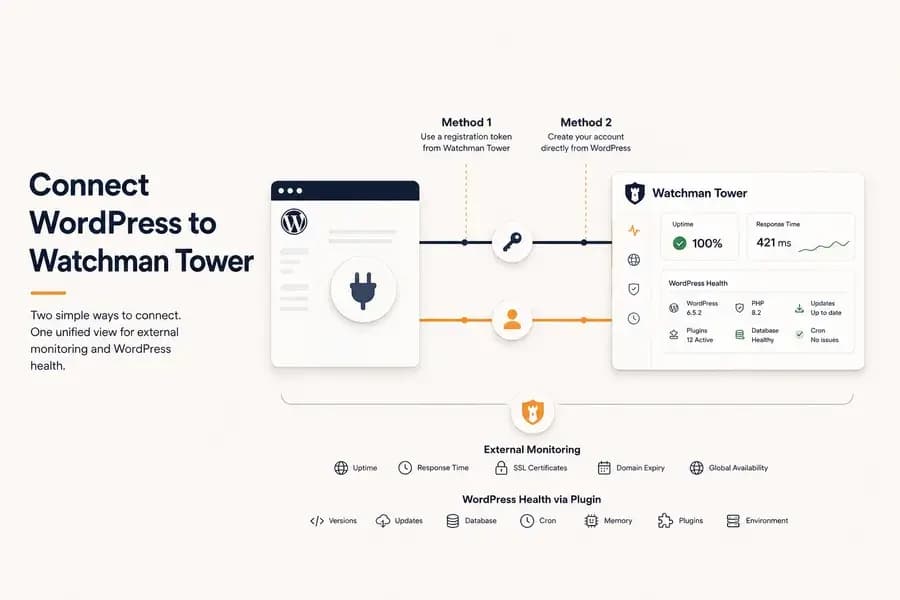
Learn how to connect a WordPress site to Watchman Tower using either an existing account or by creating a new account directly from the official WordPress plugin.
You can connect a WordPress site to Watchman Tower in two different ways.
If you already have a Watchman Tower account, you can add the site from the dashboard, generate a registration token, and use that token inside the official WordPress plugin.
If you are completely new to Watchman Tower, you can start directly inside WordPress. The plugin can create your Watchman Tower account, register the current site, and complete the connection during the same setup flow.
Both methods lead to the same result: the WordPress installation becomes linked to its corresponding site in Watchman Tower, where external monitoring and WordPress-specific health signals can be viewed together.
Choose the Right Setup Method
| Your situation | Recommended method |
|---|---|
| You already have a Watchman Tower account or already added the site from the application | Connect the plugin using a registration token from the Watchman Tower dashboard |
| You do not have a Watchman Tower account yet | Install the plugin and create your account directly from WordPress |
You do not need to complete both flows. Choose the one that matches your current setup.
Before You Start
You will need:
- Administrator access to the WordPress site
- The official Watchman Tower plugin installed or permission to install it
- A working email address if you plan to create a new account from the plugin
External monitoring does not depend on the plugin. You can monitor uptime, response time, SSL certificates, domain expiry, and regional availability from Watchman Tower without installing anything inside WordPress.
The plugin adds a second monitoring layer by sending WordPress-specific health information such as version details, update status, PHP memory usage, database health, cron information, active plugins, and related environment data.
Method 1: Connect an Existing Watchman Tower Account
Use this method when you already have a Watchman Tower account or when the WordPress site has already been added from the Watchman Tower application.
Step 1: Add the WordPress Site to Watchman Tower
Sign in to the Watchman Tower application and add the WordPress site you want to monitor.
Enter the public site URL carefully. The domain used in Watchman Tower must match the WordPress installation you are connecting. This protects the registration process from being used with a different domain.
Once the site is added, external monitoring can begin independently of the plugin.
Step 2: Open the WordPress Setup Area
Open the site inside Watchman Tower and go to its WordPress monitoring section.
The setup interface provides a short-lived registration token that links the current Watchman Tower site record with the matching WordPress installation.
Step 3: Generate and Copy the Registration Token
Generate a new registration token and copy it before leaving the setup screen.
The token is temporary and should be used shortly after it is created. If it expires before the connection is completed, generate a new token rather than reusing the old one.
Step 4: Install the Official WordPress Plugin
In the WordPress administration panel, go to:
Plugins → Add New
Search for the official Watchman Tower plugin, install it, and activate it.
You can also install it directly from the official Watchman Tower plugin page on WordPress.org.
Step 5: Choose “I Already Have an Account”
Open the Watchman Tower plugin from the WordPress administration panel.
On the initial connection screen, select:
I Already Have an Account
This option opens the existing-account connection flow.
Step 6: Paste the Registration Token
Paste the registration token generated in Watchman Tower into the plugin and continue.
The plugin sends the token for verification. Watchman Tower checks that:
- The token is valid and has not expired
- The token has not already been used
- The WordPress domain matches the site registered in Watchman Tower
If the domain does not match, the connection is rejected rather than linking the wrong installation.
Step 7: Confirm the Connection
When verification succeeds, the WordPress installation is connected to Watchman Tower.
The plugin stores the authenticated connection details required for future WordPress health snapshots. You do not need to keep entering registration tokens after the initial setup.
Return to the WordPress tab in Watchman Tower to confirm that the site is connected and that WordPress information has started appearing.
What Happens After an Existing Account Is Connected?
External monitoring continues to operate from outside the WordPress site. The plugin adds internal WordPress context to the same site record.
Depending on the available data, the dashboard can show:
- WordPress and PHP versions
- Active theme and plugin inventory
- Pending WordPress core, plugin, and theme updates
- Database health
- Cron status and overdue scheduled events
- PHP memory usage and configured limits
- Autoload size
- User registration and XML-RPC status
Installing the plugin does not replace external uptime monitoring. It adds WordPress-specific health signals to monitoring that already observes the site from the outside.
Method 2: Create a Watchman Tower Account from WordPress
Use this method when you have installed the Watchman Tower plugin but do not already have a Watchman Tower account.
You can create the account directly from the WordPress administration panel. The plugin detects the current WordPress site, creates the Watchman Tower account, registers the site, and begins the connection flow without requiring you to leave WordPress first.
Step 1: Install and Activate the Official Plugin
In the WordPress administration panel, go to:
Plugins → Add New
Search for Watchman Tower, install the official plugin, and activate it.
You can also use the official Watchman Tower plugin page on WordPress.org.
Step 2: Open the Watchman Tower Plugin
Open Watchman Tower from the WordPress administration menu.
The initial setup screen gives you two choices:
- I Already Have an Account
- Create New Account
Select Create New Account.
Step 3: Review the Detected Site
The plugin automatically detects the current WordPress installation and uses its site URL during registration.
Review the detected site name and URL before continuing. The account and generated connection will be tied to this WordPress site and domain.
This domain binding prevents a registration created for one site from being reused to connect a different installation.
Step 4: Enter Your Account Information
Enter the email address you want to use for Watchman Tower.
You may also be asked to confirm or edit the site name used inside the Watchman Tower dashboard.
Depending on the current plugin flow, you can either provide a password or leave the password field empty and allow one to be generated for you.
Use an email address that you can access, because account and monitoring information may be sent there.
Step 5: Create the Account
Select Create Account.
The plugin sends the registration request to Watchman Tower using the current WordPress site information.
Watchman Tower then:
- Creates the user account
- Creates the site record for the detected WordPress installation
- Associates the site with WordPress monitoring
- Creates the secure connection required by the plugin
You do not need to add the same site manually from the Watchman Tower application after this process.
Step 6: Wait for the Connection to Complete
After the account is created, the plugin completes the initial connection and sends the first WordPress health snapshot.
When the setup succeeds, the plugin should move to its connected state and provide access to the Watchman Tower dashboard.
You can then sign in to Watchman Tower using the account created from WordPress.
What Monitoring Starts After Account Creation?
Creating an account from the plugin registers the WordPress site with Watchman Tower and connects the internal health integration.
The platform can then combine two monitoring layers.
External Monitoring
Watchman Tower checks the public WordPress site independently from the plugin.
This layer may include:
- Uptime and availability checks
- Response time tracking
- Regional measurements
- SSL certificate monitoring
- Domain expiry tracking
- Incident and recovery visibility
Internal WordPress Health
The connected plugin adds WordPress-specific information such as:
- WordPress and PHP versions
- Active theme and plugin inventory
- Pending core, plugin, and theme updates
- Database health
- Cron visibility
- PHP memory usage
- Autoload size
- Registration and XML-RPC status
These two layers should not be confused. The Watchman Tower platform performs external monitoring, while the plugin supplies internal WordPress context.
For a detailed comparison, read WordPress monitoring plugin.
How the Connection Stays Secure
The initial setup uses a temporary registration process to verify the relationship between the Watchman Tower site record and the WordPress installation.
After verification, the plugin and Watchman Tower use authenticated communication for future WordPress health requests and snapshots.
The connection is also tied to the matching site domain. If the registration information belongs to another domain, Watchman Tower rejects the connection.
The practical security model is:
- Verify the user and site during registration.
- Confirm that the WordPress domain matches the Watchman Tower site.
- Establish an authenticated connection for future communication.
- Allow the integration to be disconnected when it is no longer needed.
How WordPress Health Data Is Updated
Once connected, Watchman Tower requests health snapshots from the plugin through the WordPress REST API.
The plugin verifies the authenticated request, collects the current WordPress health information, and sends the resulting snapshot back to Watchman Tower.
This means the normal monitoring flow does not rely only on WordPress remembering to report on its own. Watchman Tower actively requests the information required to keep the dashboard current.
The latest snapshot is then stored and shown alongside external monitoring information for the same site.
How to Confirm That the Site Is Connected
After completing either setup method, check both WordPress and Watchman Tower.
In WordPress
The plugin should display a connected state rather than the initial account-selection screen.
Depending on the current interface, it may also show monitoring status, site details, or a link to open the Watchman Tower dashboard.
In Watchman Tower
Open the corresponding site and review the WordPress section.
A successful connection should begin showing WordPress-specific information such as versions, updates, memory, database status, cron details, and active plugins.
External uptime and performance data may appear separately because it is collected by the Watchman Tower monitoring platform rather than the plugin.
Troubleshooting Common Connection Problems
The Registration Token Has Expired
Registration tokens are temporary. If the existing-account connection does not complete in time, return to Watchman Tower and generate a new token.
Do not repeatedly reuse an expired token.
The Domain Does Not Match
The WordPress installation must match the site associated with the registration token.
Check for differences such as:
- A different root domain
- A staging domain instead of the production domain
- An outdated site record in Watchman Tower
- A migrated WordPress installation using an old URL
Add or select the correct site in Watchman Tower and generate a new registration token for that installation.
The Plugin Is Installed but WordPress Data Is Missing
Confirm that the plugin shows a connected state and that the correct site is open in Watchman Tower.
WordPress data may not appear immediately if the first health request has not completed yet.
You can also use the plugin’s manual heartbeat or connection controls, when available, to trigger a new update.
External Monitoring Works but Plugin Data Is Unavailable
External monitoring and plugin communication are independent.
A site can remain online while the plugin connection is unavailable, paused, or unable to return a WordPress health snapshot.
In this situation, uptime data may continue normally while the internal WordPress information becomes stale or unavailable.
The Account Was Created but Login Details Are Missing
Check the email address used during account creation, including its spam or junk folder.
If the password was generated automatically, the account email should contain the information required to continue.
Use the standard Watchman Tower password recovery flow if needed.
The Wrong Site Was Connected
Disconnect the integration from the plugin, confirm the correct WordPress site and Watchman Tower site record, and repeat the appropriate setup method.
Do not try to reuse a token created for another site.
How to Disconnect WordPress from Watchman Tower
The plugin can be unlinked when you no longer want to send WordPress health information to Watchman Tower.
Disconnecting the plugin disables the WordPress agent connection and pauses future internal health updates.
It does not necessarily delete the Watchman Tower site record or its existing monitoring history.
External uptime, response time, SSL, and domain monitoring may continue as long as the site remains active in Watchman Tower.
Which Setup Method Should You Use?
| Situation | Best starting point |
|---|---|
| You already have a Watchman Tower account | Add or open the site in Watchman Tower and connect the plugin with a registration token |
| The site is already monitored in Watchman Tower | Generate the token from the site’s WordPress setup area and paste it into the plugin |
| You are new to Watchman Tower | Install the plugin and select Create New Account |
| You want to begin without leaving WordPress | Create the account directly from the plugin |
Start Monitoring from the Layer You Need
The two setup methods exist so that both current Watchman Tower users and new WordPress users can connect without unnecessary duplication.
Existing users can connect a site already present in their dashboard. New users can begin directly from WordPress and create the required account and site connection during plugin setup.
After the connection is complete:
- External monitoring shows whether the site is publicly reachable and responsive.
- The plugin adds internal WordPress health and maintenance context.
- Watchman Tower brings both layers together in the same site dashboard.
Install the integration from the official Watchman Tower WordPress plugin page, or review the full WordPress installation documentation.
For the complete product overview, visit WordPress Monitoring.
Free plan available. No credit card needed.
FAQ
How do I connect WordPress to Watchman Tower if I already have an account?v
Can I create a Watchman Tower account directly from WordPress?v
What information does the Watchman Tower plugin monitor?v
Why is my registration token not working?v
What happens after disconnecting the WordPress plugin?v
Do I need the plugin for basic uptime monitoring?v
Blog Posts
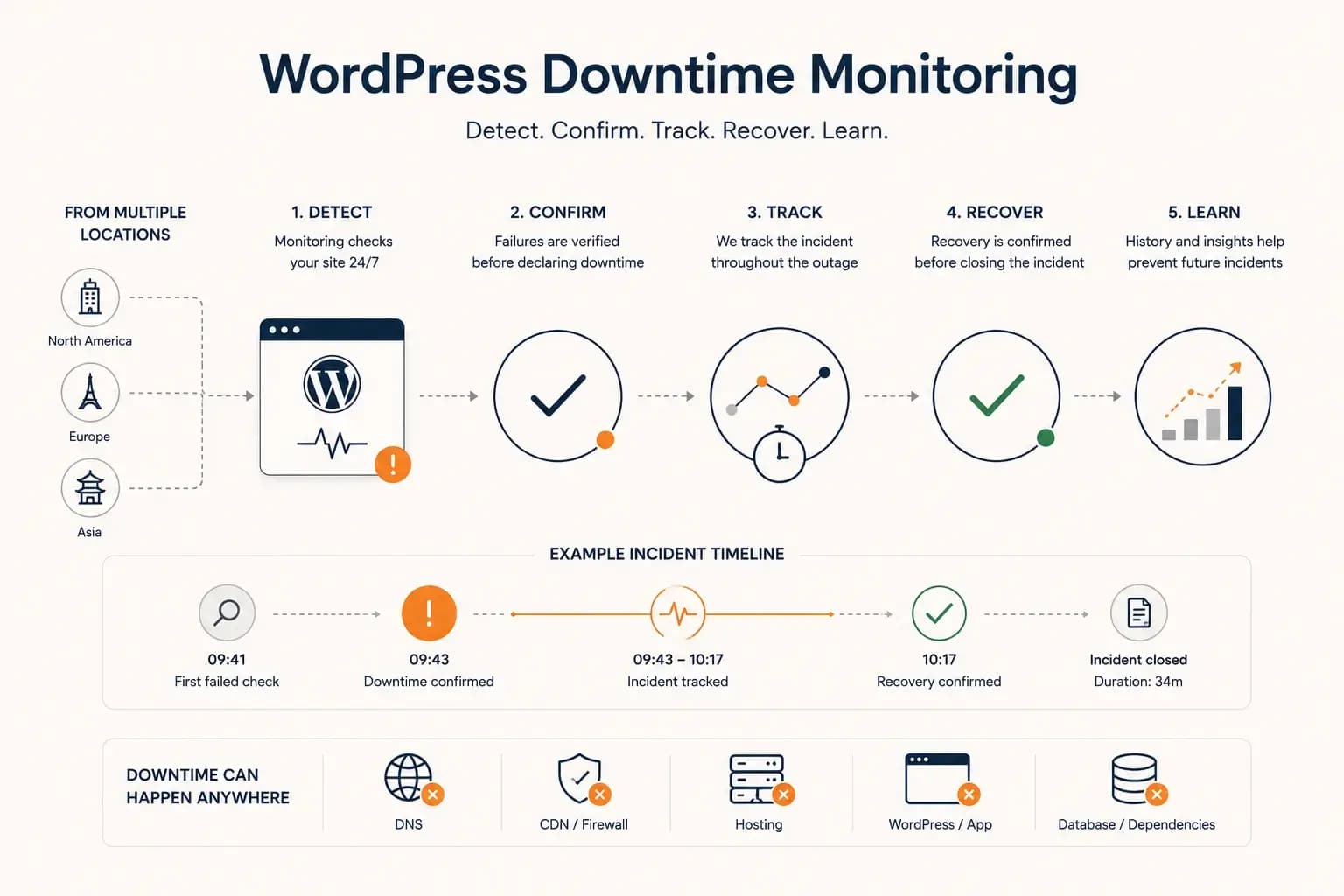
WordPress Downtime Monitoring: How to Detect and Track Outages...
WordPress downtime monitoring goes beyond detecting a failed request. Learn how to confirm real outages, track incidents, verify recovery, and use downtime history to improve reliability.
Learn more about WordPress Downtime Monitoring: How to Detect and Track Outages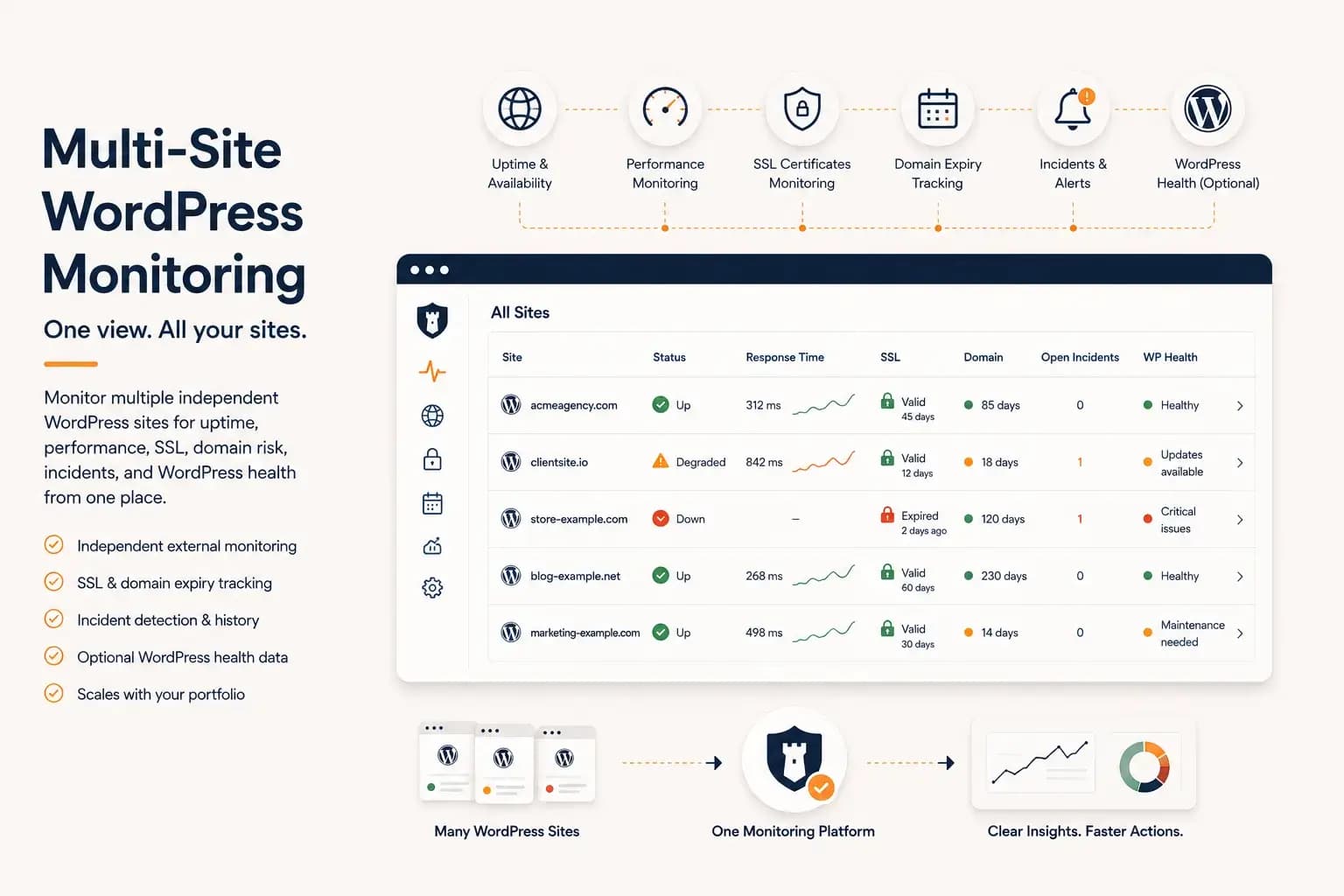
WordPress Multi-Site Monitoring: Manage Multiple Sites Efficiently...
Managing multiple WordPress websites requires more than uptime checks. Learn how to centralize monitoring, reduce operational overhead, and gain visibility into performance, SSL, domains, and WordPress health from a single dashboard.
Learn more about WordPress Multi-Site Monitoring: Manage Multiple Sites Efficiently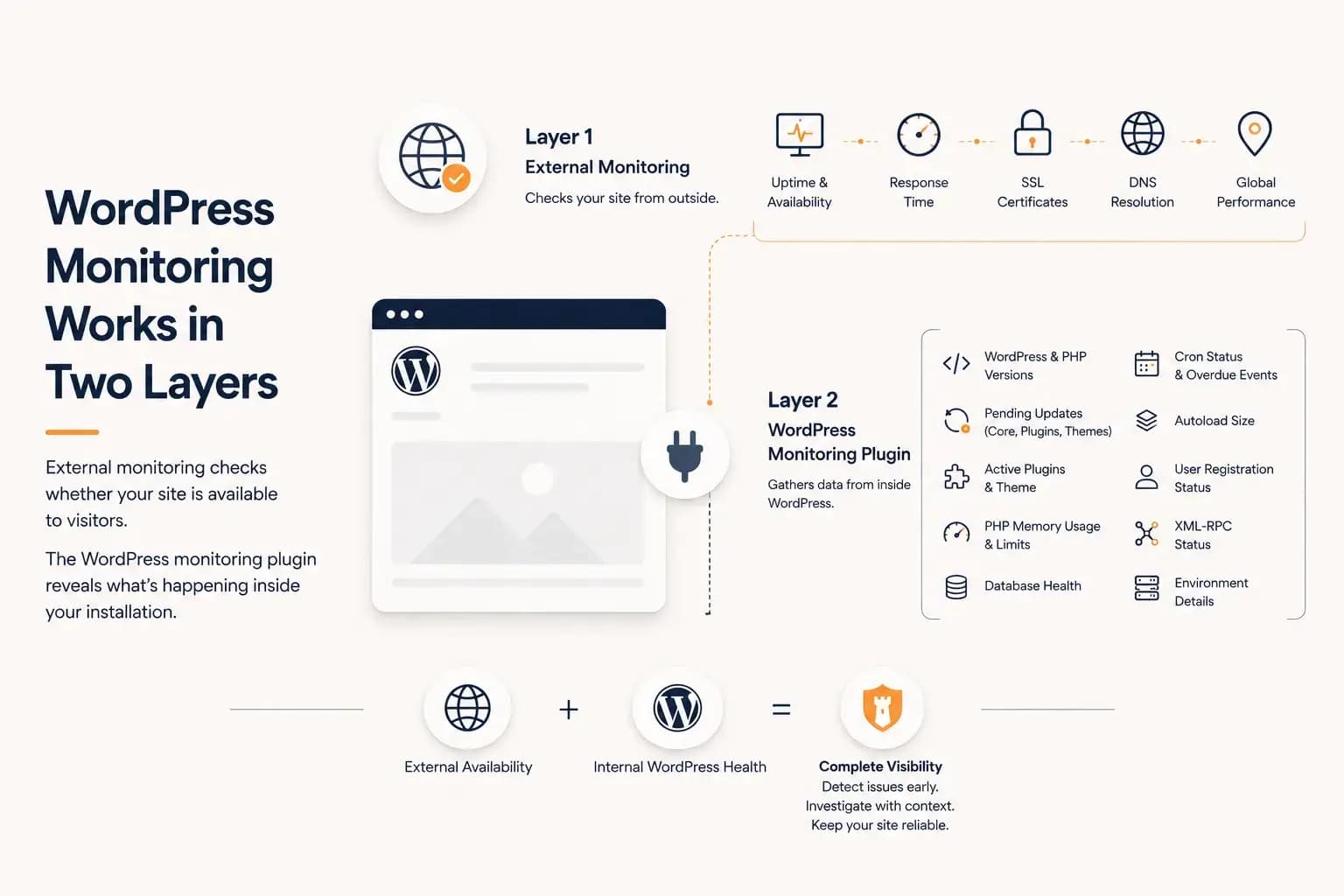
WordPress Monitoring Plugin: What It Tracks and What It Misses...
A WordPress monitoring plugin reveals application-level health such as updates, PHP memory, database status, cron activity, and plugin inventory. This guide explains what it can monitor, what it cannot see, and why it works best alongside external monitoring.
Learn more about WordPress Monitoring Plugin: What It Tracks and What It Misses