

WordPress Monitoring Plugin: What It Tracks and What It Misses
- Watchman Tower Team
- Updated: October 1, 2026
- Category: WordPress Monitoring
- Read Time: 12 min
A WordPress monitoring plugin reveals application-level health such as updates, PHP memory, database status, cron activity, and plugin inventory. This guide explains what it can monitor, what it cannot see, and why it works best alongside external monitoring.
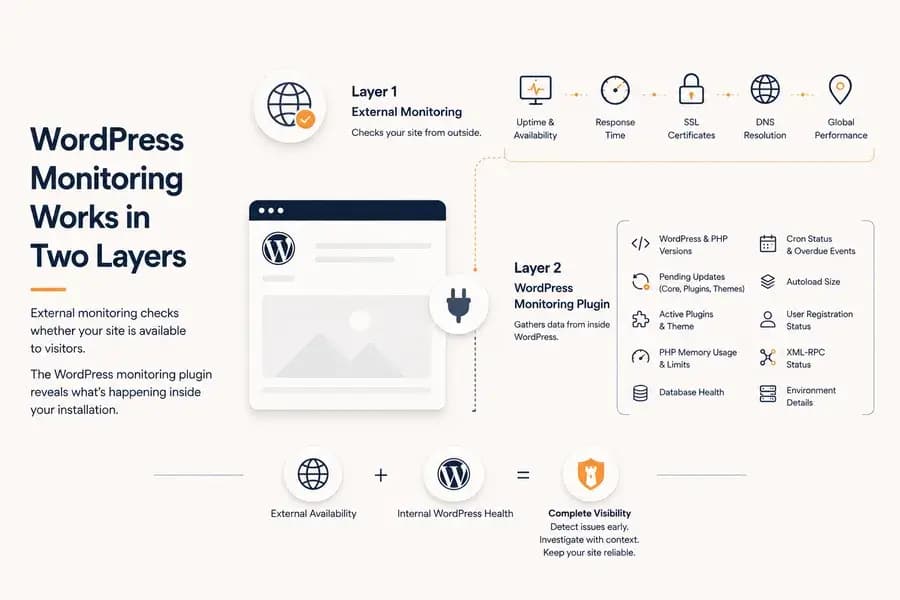
A WordPress monitoring plugin gives you visibility into what is happening inside a WordPress installation. It can report application-specific information such as pending updates, PHP memory usage, database health, cron activity, active plugins, and environment details.
That makes a monitoring plugin valuable, but it does not make the plugin an independent uptime monitor.
A plugin runs inside the same WordPress installation it observes. If the server, PHP runtime, DNS, SSL certificate, or public network path fails, the plugin may be unable to detect or report the customer-facing problem. Reliable WordPress monitoring therefore usually combines internal plugin data with external checks performed from outside the website.
The distinction is important: external monitoring tells you whether visitors can reach the site, while a WordPress monitoring plugin helps explain what is happening inside the application.
Why WordPress Monitoring Plugins Exist
External website monitoring can detect downtime, HTTP errors, slow responses, certificate problems, DNS failures, and regional availability issues. However, an external request cannot see most of the operational state inside WordPress.
It cannot normally tell you which plugins are active, whether WordPress core requires an update, how much PHP memory the application is using, or whether scheduled WordPress tasks are overdue.
A WordPress monitoring plugin closes this visibility gap by collecting information from the application itself and making it available to a central monitoring platform.
This is particularly useful when a site remains publicly available but begins showing early signs of maintenance or runtime problems. Internal signals may reveal growing memory pressure, pending updates, database issues, or cron problems before they develop into a larger incident.
What a WordPress Monitoring Plugin Can Track
The exact capabilities depend on the plugin and the platform connected to it. A useful WordPress monitoring plugin should focus on operational information that cannot be reliably collected from outside the application.
WordPress and PHP Versions
The WordPress and PHP versions provide basic but important environment context.
Outdated versions may create compatibility, maintenance, or security concerns. When multiple sites are managed across different hosting environments, a centralized version inventory also makes it easier to identify installations that require attention.
WordPress Core, Plugin, and Theme Updates
Pending updates are one of the most common maintenance signals in WordPress.
A monitoring plugin can report whether updates are available for:
- WordPress core
- Installed plugins
- Installed themes
Centralized update visibility is especially valuable for agencies and developers managing many sites. Instead of opening each WordPress administration panel separately, they can identify which installations require maintenance from one dashboard.
Active Plugin and Theme Inventory
A current inventory of active plugins, installed versions, and the active theme provides useful diagnostic context.
It does not automatically create a complete history of every configuration change. However, it helps teams understand the current application environment when investigating compatibility problems, failed updates, slow requests, or unexpected behaviour.
PHP Memory Usage
PHP memory pressure can contribute to slow requests, failed administrative operations, and server errors.
A WordPress monitoring plugin can report:
- The configured PHP memory limit
- Current memory usage
- Memory utilisation relative to the available limit
These internal measurements add context to the response-time and availability data collected externally. A slow site may have many possible causes, but unusually high PHP memory usage gives the person investigating the issue a more useful starting point.
Memory is only one part of application performance. Our WordPress performance monitoring guide explains how external response measurements and internal WordPress health signals should be interpreted together.
Database Health
WordPress depends on its database for content, settings, users, plugin data, and many application operations.
A database problem may cause complete downtime, intermittent errors, failed administrative actions, or partial application failure. Internal monitoring can expose the current database health state even when the public website has not yet become completely unavailable.
WordPress Cron Visibility
WordPress uses scheduled events for background operations such as publishing scheduled posts, running maintenance tasks, processing plugin jobs, and performing routine cleanup.
A monitoring plugin can report overdue cron events and upcoming scheduled tasks. This provides useful diagnostic visibility when background work stops running as expected.
Cron visibility should not automatically be interpreted as a guaranteed cron-alerting system. The plugin may expose the condition in the monitoring dashboard even when every overdue event does not generate a separate incident notification.
Autoload Size
WordPress loads autoloaded options during many requests. An unusually large autoload dataset can increase the amount of data WordPress processes and may contribute to application overhead.
Autoload size is not a complete performance diagnosis by itself. It is a supporting signal that can help teams investigate slow or resource-heavy WordPress installations.
Registration and XML-RPC Status
A plugin may also report whether public user registration and XML-RPC are enabled.
These values provide configuration visibility. They should not be confused with a complete security monitoring or change-detection system, but they can help teams review potentially relevant settings alongside other WordPress health information.
What a WordPress Monitoring Plugin Cannot Reliably Detect
A plugin observes WordPress from inside WordPress. That creates an unavoidable dependency: the application must remain healthy enough to execute the plugin and communicate with the monitoring platform.
This means plugin-only monitoring has several important blind spots.
Complete Hosting or Server Failure
If the web server becomes unavailable, the hosting provider experiences an outage, or PHP stops executing, the plugin may be unable to report anything.
The absence of a plugin update can suggest a communication problem, but it is not the same as an independent external confirmation that the website is down.
DNS Failures
WordPress may continue running normally on the server while the public domain no longer resolves for visitors.
Because DNS exists outside the WordPress application, an independent external check is the more reliable way to detect this type of failure.
SSL Certificate Problems
An expired, invalid, or untrusted SSL certificate can prevent visitors from accessing the site safely even when WordPress itself remains healthy.
A plugin running inside the application may continue reporting normal internal information while browsers display certificate errors.
CDN, Firewall, and Routing Problems
Public access can fail because of a content delivery network, firewall rule, reverse proxy, routing problem, or regional network issue.
These failures occur outside WordPress and may not be visible to a plugin running on the origin server.
Real Visitor Availability
Internal telemetry cannot prove that visitors in different locations can reach the website.
External monitoring checks the public site independently and can measure availability and response time from one or more monitoring regions.
Why External Monitoring Still Matters
External monitoring remains the baseline for WordPress availability because it observes the site independently from the system being monitored. For what to look for when choosing one, see how to pick a WordPress monitoring service.
It can detect:
- Failed HTTP responses
- Timeouts and refused connections
- DNS resolution problems
- SSL certificate errors and upcoming expiry
- Slow public response times
- Regional availability differences
- Confirmed recovery after an incident
This makes external monitoring the more reliable source of truth for the question:
Can visitors reach the WordPress site right now?
The plugin answers a different question:
What is happening inside the WordPress installation?
Neither perspective should be stretched beyond its real purpose. The comparison and the incident scenarios below show where each one applies.
WordPress Monitoring Plugin vs External Monitoring
The two approaches are often compared as though one must replace the other. They cover different ground:
| Capability | WordPress plugin | External monitoring |
|---|---|---|
| Detect complete website downtime | No | Yes |
| Detect HTTP errors and timeouts | No | Yes |
| Track public response time | Usually no | Yes |
| Detect SSL certificate problems | Usually no | Yes |
| Detect DNS or routing failures | No | Yes |
| Monitor from multiple regions | No | Yes |
| Report WordPress and PHP versions | Yes | No |
| Show core and plugin updates | Yes | No |
| Show PHP memory usage | Yes | No |
| Show cron and database context | Yes | No |
| Keep checking when WordPress fails | No | Yes |
The difference is easiest to see in real incidents:
| Incident | External monitoring | WordPress plugin |
|---|---|---|
| The hosting server goes offline | Detects the timeout or failed connection | Cannot report, because WordPress is unavailable |
| PHP memory nears its limit | May show slow responses or intermittent errors | Reports memory usage and the configured limit |
| The SSL certificate expires | Detects the certificate problem | May keep reporting normal internal health |
| Cron events become overdue | May show nothing wrong | Reports overdue and upcoming scheduled tasks |
| DNS stops resolving | Detects the DNS failure | Keeps running on the server but cannot see the public failure |
| Plugin updates are pending | Keeps reporting the site as reachable | Reports the pending updates |
External monitoring is the availability baseline. Plugin signals add maintenance visibility and diagnostic context on top of it, so the useful question is how the two work together, not which one to pick.
How Internal Signals Help During Incidents
A monitoring plugin becomes especially valuable when internal health information is reviewed alongside external incident data.
Consider a WordPress site that begins returning intermittent 500 errors.
External monitoring can show:
- When the errors began
- Which status codes were returned
- Whether the problem affected multiple regions
- Whether response time increased before the failures
- When the site recovered
The latest internal snapshot may also show:
- PHP memory usage near its configured limit
- A database health problem
- Multiple pending plugin updates
- Overdue cron events
- The active plugin and environment inventory
These internal signals do not automatically prove the root cause. Correlation is not the same as diagnosis. However, they can significantly narrow the investigation and help teams decide where to look first.
How the Watchman Tower WordPress Plugin Works
The official Watchman Tower plugin acts as an integration layer between a WordPress installation and the Watchman Tower monitoring platform.
It is not a standalone uptime monitor running from inside WordPress.
Watchman Tower performs external checks independently of the plugin. These checks can monitor:
- Website uptime and availability
- Public response time
- Regional performance
- SSL certificate status
- Domain expiry
- Incidents and recoveries
When the official plugin is connected, it adds WordPress-specific health information to the same site dashboard.
The plugin can report:
- WordPress and PHP versions
- Active plugins and theme
- Pending core, plugin, and theme updates
- Database status
- Cron details
- PHP memory usage and limits
- Autoload size
- Registration and XML-RPC status
This allows external availability and internal WordPress context to be reviewed as two complementary layers rather than competing monitoring methods.
How WordPress Health Data Reaches Watchman Tower
After the initial connection is established, Watchman Tower requests authenticated health snapshots from the plugin through the WordPress REST API.
The plugin verifies the request, collects the current WordPress information, and returns the resulting snapshot to Watchman Tower.
This externally requested flow reduces reliance on WordPress remembering to initiate every monitoring update through its own scheduled task system.
The latest internal snapshot is then stored and displayed alongside the corresponding site’s external monitoring information.
How the Connection Is Secured
Connecting the plugin begins with a temporary registration flow.
Watchman Tower verifies that the WordPress installation matches the site being connected. A registration created for one domain cannot be used to connect an unrelated WordPress installation.
After the initial verification, subsequent communication uses an authenticated agent connection. The user does not need to paste a registration token for every health update.
The integration can also be disconnected from WordPress. Disconnecting it stops future internal health updates without necessarily deleting the external monitoring site or its existing monitoring history.
How to Connect the Plugin
There are two supported onboarding paths.
Connect an Existing Watchman Tower Account
Existing users can add or open the WordPress site in Watchman Tower, generate a short-lived registration token, install the official plugin, and paste the token into the plugin’s existing-account flow.
Create a Watchman Tower Account from WordPress
New users can begin directly from the plugin. The plugin can create the Watchman Tower account, register the current WordPress site, and establish the connection as part of the same setup process.
The complete steps for both methods are available in the guide to connecting WordPress to Watchman Tower.
Who Benefits Most from a WordPress Monitoring Plugin?
WordPress Agencies
Agencies often manage sites with different hosting providers, WordPress versions, PHP environments, plugin stacks, and maintenance schedules.
A centralized plugin-based health view reduces the need to open every wp-admin dashboard just to discover which sites require updates or investigation.
Freelancers and Developers
Freelancers responsible for maintenance can use internal health information to prioritise work and collect diagnostic context before contacting a client or hosting provider.
Multi-Site Operators
Organizations responsible for multiple independent WordPress installations benefit from a consistent inventory of versions, updates, plugins, themes, memory usage, and environment information.
Business-Critical WordPress Sites
WooCommerce stores, membership platforms, lead-generation websites, and customer-facing applications need independent uptime monitoring first. Plugin health data then provides the additional context required for faster diagnosis and more structured maintenance.
Common Misconceptions About WordPress Monitoring Plugins
A WordPress Monitoring Plugin Automatically Monitors Uptime
Not necessarily.
A plugin may report internal heartbeat or health information, but reliable uptime monitoring should come from an external service that continues checking when WordPress cannot respond.
A Healthy Plugin Connection Means the Website Is Reachable
Not always.
The plugin may continue running while visitors experience DNS, SSL, CDN, firewall, or regional network failures.
External Monitoring Makes the Plugin Unnecessary
External monitoring cannot see most WordPress-specific health and maintenance information.
It may show that the site is slow or returning errors, but it cannot directly report pending updates, PHP memory usage, cron information, active plugins, or the current WordPress environment.
A Plugin Can Identify the Root Cause of Every Incident
Internal signals provide context, not certainty.
High memory usage, overdue cron events, pending updates, or a database warning may be relevant to an incident, but teams should still verify the actual cause before drawing conclusions.
Should You Use a WordPress Monitoring Plugin?
Install a WordPress monitoring plugin when you need operational visibility inside the application.
It is particularly useful when:
- You manage several WordPress sites
- You need centralized update visibility
- You want to track PHP memory usage
- You need database and cron context
- You want an inventory of active plugins and environment versions
- You need better context during incident investigation
Do not use it as the only availability layer for an important production site.
External monitoring should determine whether the site is publicly reachable. The plugin should enrich that monitoring with application-specific health and maintenance information.
WordPress Monitoring Works Best in Layers
A WordPress monitoring plugin is not valuable because it replaces external monitoring. It is valuable because it reveals a different part of the system.
External checks observe what visitors experience. The plugin observes the internal WordPress environment. A central platform brings those two views together so incidents can be detected independently and investigated with better context.
See how Watchman Tower combines external availability checks with optional internal WordPress health signals on the WordPress Monitoring feature page.
Free plan available. No credit card needed.
FAQ
What can a WordPress monitoring plugin track?v
Can a WordPress monitoring plugin detect if my site is down?v
Why is external monitoring still important for WordPress sites?v
How does the Watchman Tower plugin work with WordPress?v
Who benefits most from using a WordPress monitoring plugin?v
Can a WordPress monitoring plugin identify the root cause of incidents?v
Blog Posts
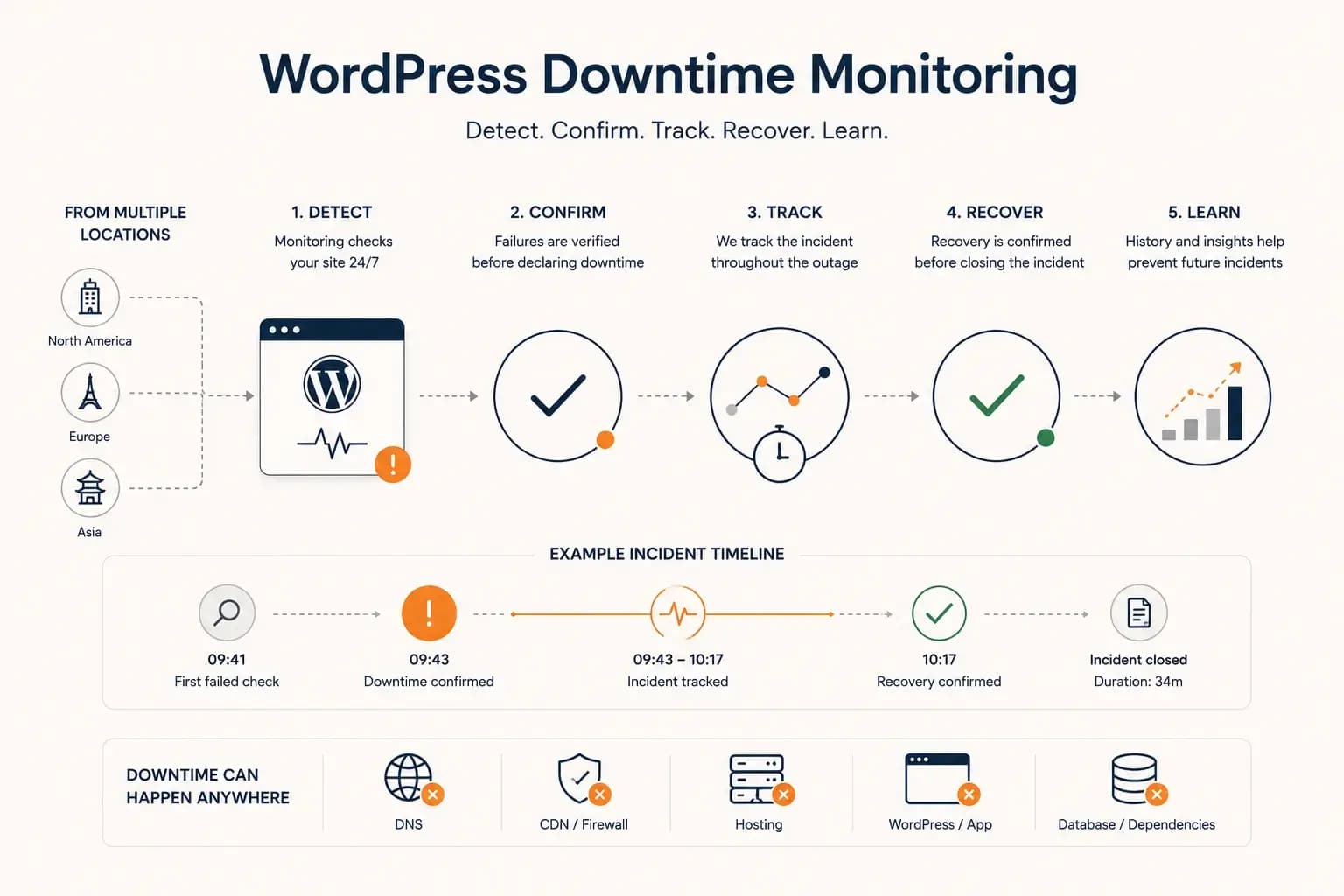
WordPress Downtime Monitoring: How to Detect and Track Outages...
WordPress downtime monitoring goes beyond detecting a failed request. Learn how to confirm real outages, track incidents, verify recovery, and use downtime history to improve reliability.
Learn more about WordPress Downtime Monitoring: How to Detect and Track Outages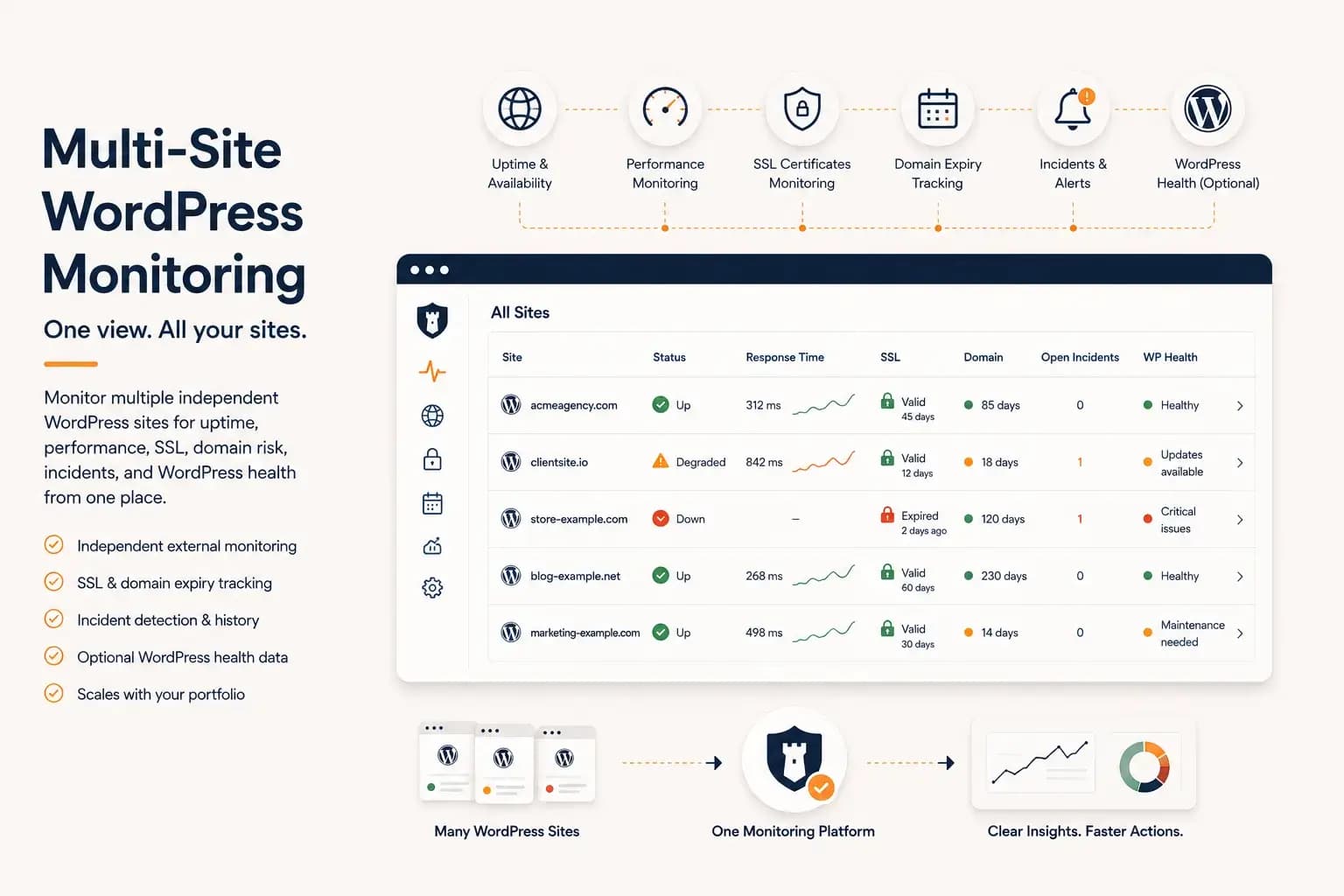
WordPress Multi-Site Monitoring: Manage Multiple Sites Efficiently...
Managing multiple WordPress websites requires more than uptime checks. Learn how to centralize monitoring, reduce operational overhead, and gain visibility into performance, SSL, domains, and WordPress health from a single dashboard.
Learn more about WordPress Multi-Site Monitoring: Manage Multiple Sites Efficiently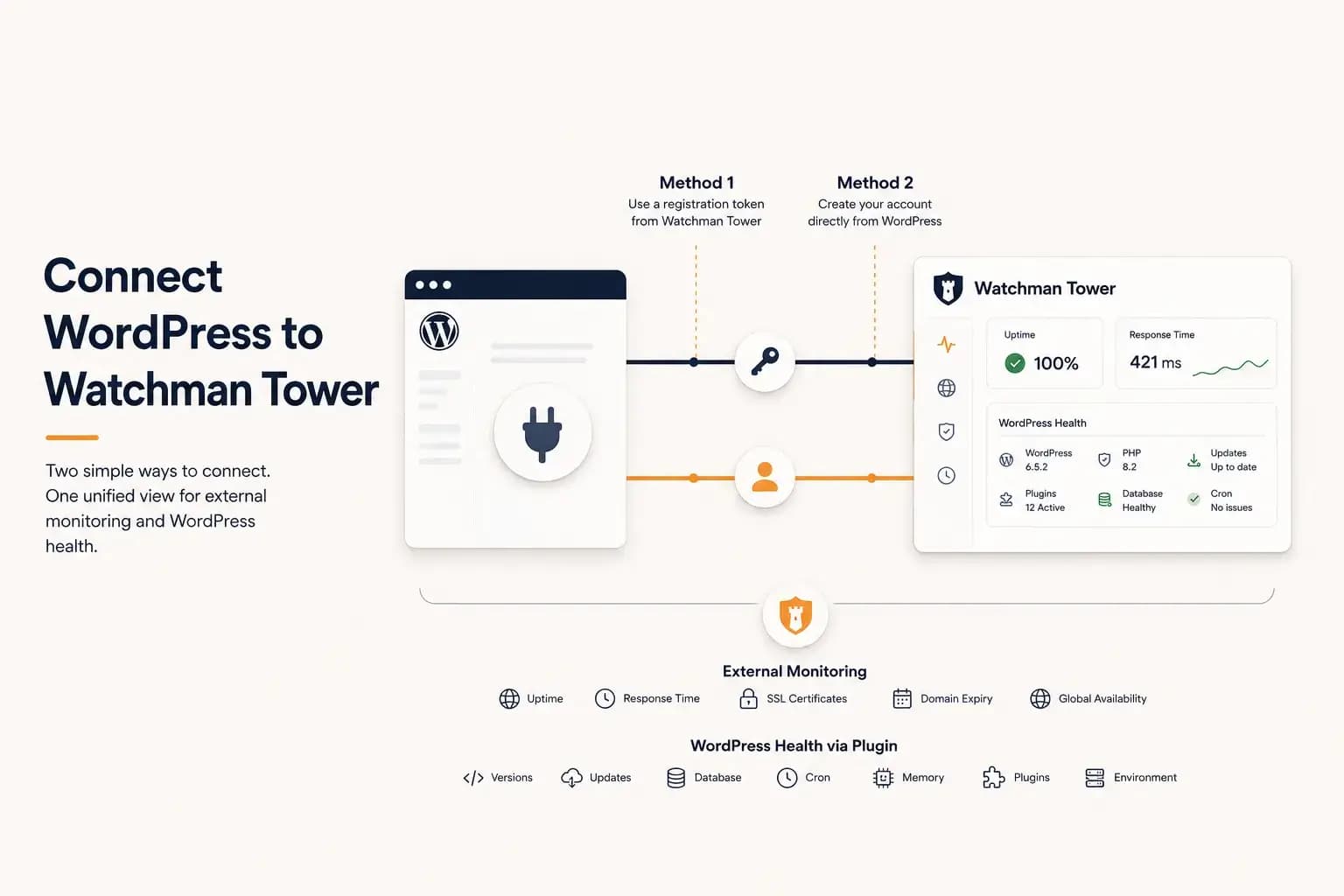
How to Connect WordPress to Watchman Tower...
Learn how to connect a WordPress site to Watchman Tower using either an existing account or by creating a new account directly from the official WordPress plugin.
Learn more about How to Connect WordPress to Watchman Tower