

WordPress Uptime Monitoring and Alerting: Best Practices
- Watchman Tower Team
- Updated: August 10, 2026
- Category: WordPress Monitoring
- Read Time: 9 min
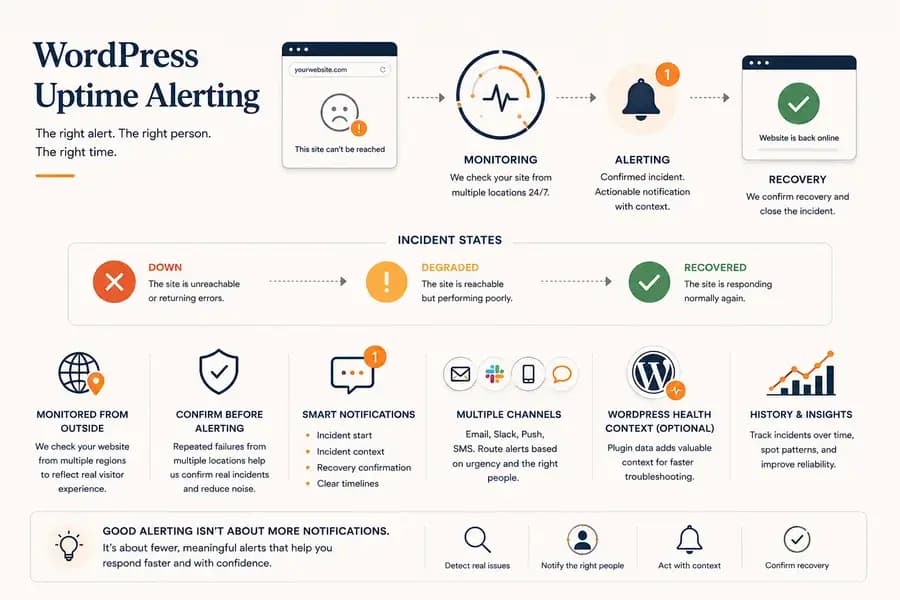
Good WordPress uptime alerting is not about more notifications. It is about confirming meaningful incidents, routing them correctly, and giving teams enough context to respond and verify recovery.
WordPress uptime alerting is not about receiving more notifications. It is about being notified when a failure is important enough to require attention, with enough context to understand what happened and decide what to do next.
That distinction matters because uptime monitoring continuously produces signals. Individual requests can fail because of temporary network conditions, short deployment interruptions, overloaded infrastructure, or regional routing problems. Turning every failed check into an alert quickly creates noise.
A reliable alerting workflow sits between monitoring and incident response. It confirms meaningful failures, separates different incident states, routes notifications appropriately, and tells the team when service has recovered.
If you need the availability foundation first, see our WordPress Uptime Monitoring guide.
What Is WordPress Uptime Alerting?
WordPress uptime alerting is the process of turning monitoring signals into actionable notifications when a WordPress website becomes unavailable, degraded, or recovers from an incident.
The monitoring system observes the website continuously. The alerting layer decides when those observations are important enough to interrupt someone.
A useful alerting system should answer four questions quickly:
- What happened? Was the site unreachable, degraded, or recovered?
- Which site is affected? Which domain, URL, or monitor generated the incident?
- How confident are we? Was this an isolated failed request or a confirmed incident?
- Who needs to respond? Does this require immediate action or simply operational awareness?
If a notification cannot help answer these questions, it may create more interruption than operational value.
Monitoring and Alerting Are Not the Same Thing
Monitoring observes. Alerting interrupts.
This difference is easy to overlook.
A monitoring platform may collect response times, HTTP failures, regional results, SSL information, domain status, and WordPress health signals throughout the day. Most of those observations should never become urgent notifications.
Alerting should select the subset of signals that require human attention.
This is why a good uptime monitoring system can generate thousands of checks while producing only a small number of meaningful incidents.
Confirm Downtime Before Sending an Alert
The first failed request is evidence of a problem, but it is not always evidence of an outage.
Brief CPU pressure, packet loss, a cache restart, an application deployment, or a temporary routing problem can cause one request to fail while the next succeeds normally.
Alerting immediately after every isolated failure creates false positives and eventually teaches teams to distrust the monitoring system.
A better workflow confirms the failure before declaring the site down.
Confirmation may use:
- Repeated checks
- Checks from additional monitoring locations
- Consistent HTTP or connection failures
- A combination of time and failure thresholds
The specific confirmation strategy depends on how critical the website is and how quickly the team needs to respond. The principle is more important than the exact number: an alert should represent a meaningful incident, not merely a failed request.
Separate Down, Degraded, and Recovered States
Not every reliability problem has the same severity.
A useful alerting model distinguishes at least three operational states.
Down
The site cannot be reached reliably or repeatedly returns hard failures such as server errors, connection failures, or timeouts.
Degraded
The site remains reachable but its behaviour has deteriorated enough to deserve attention. Response times may be unusually high, failures may be intermittent, or one monitoring region may be experiencing problems.
Recovered
The monitoring system has confirmed that the affected site is responding normally again.
Recovery is not merely a nice follow-up notification. It closes the operational loop. Without recovery confirmation, the responder still has to manually determine whether the incident has actually ended.
Alert on Visitor-Facing Failures First
For WordPress websites, external availability should remain the primary source of uptime incidents.
External monitoring can detect failures involving:
- HTTP errors
- Connection timeouts
- DNS resolution
- SSL connections
- Network and routing paths
- Regional availability
These checks matter because they represent what visitors can actually reach from outside the WordPress environment.
A WordPress plugin may still provide useful internal information during or around an incident, but it should not be the only source used to decide whether a public website is available. The difference is explained in WordPress Monitoring Plugin vs External Monitoring.
Use WordPress Health Signals as Context
Internal WordPress information becomes useful after an availability or performance problem has been detected because it can narrow the investigation.
Depending on the available WordPress data, responders may be able to review:
- WordPress and PHP versions
- Pending core or plugin updates
- PHP memory usage
- Database health
- Cron status
- Active plugins and environment information
These signals should be treated as diagnostic context rather than automatic proof of root cause.
For example, high PHP memory usage around the time of repeated server errors may be relevant, but the monitoring system should not claim that memory pressure caused the outage without additional evidence.
What Should a Useful Uptime Alert Contain?
Alerts should be concise enough to understand immediately but detailed enough to begin investigating without opening several different systems first.
Useful incident context includes:
- Site or monitor name
- Affected URL
- Incident state
- Detection time
- HTTP status or connection error when available
- Monitoring location or locations involved
- A direct path to the incident details
The notification itself should answer the immediate operational question: what changed, where did it happen, and does someone need to act?
Route Alerts According to Urgency
Not every incident deserves the same notification path.
A brief slowdown on a low-priority brochure site should not interrupt the same people in the same way as a confirmed outage on a WooCommerce store or client-critical application.
Alert routing should reflect operational importance.
Common channels include:
- Email for general visibility and non-urgent events
- Slack for team awareness and shared incident discussion
- Push notifications for fast individual response
- SMS for high-priority incidents that should not depend on an app being open
The important decision is not simply which channels are available. It is which incidents should use which channels.
A reliable alerting workflow avoids treating every event as equally urgent.
Avoid Alert Fatigue
Monitoring loses value when responders stop trusting it.
If alerts are frequent, vague, or repeatedly triggered by temporary failures, teams eventually begin muting channels or ignoring notifications.
Alert fatigue usually comes from a combination of:
- Alerting on isolated failed checks
- Sending the same incident through too many channels
- Treating degraded performance as complete downtime
- Sending repeated notifications without meaningful state changes
- Failing to close incidents with recovery confirmation
The solution is not fewer monitoring checks. It is better incident logic.
Monitoring can remain frequent while alerts stay selective.
Recovery Alerts Matter as Much as Downtime Alerts
A downtime notification starts the incident workflow. A recovery notification tells the team that the website is responding normally again.
Without recovery confirmation, responders may continue investigating an issue that has already resolved or manually refresh the website to determine whether service has returned.
A useful recovery event should indicate:
- Which incident recovered
- When recovery was confirmed
- How long the incident lasted
- Whether normal monitoring has resumed
This creates a complete incident timeline rather than a disconnected collection of failure notifications.
Site-Down Notifications Are the Delivery Layer
Uptime alerting defines when an incident should interrupt someone. Site-down notifications define how that message reaches them.
These are closely related, but they are not the same problem.
A strong alerting model first confirms that the website is genuinely unavailable. Only then should the notification workflow decide which channel and recipient should receive the incident.
If your immediate goal is configuring fast notifications when a WordPress site becomes unavailable, see WordPress Site Down Notification.
Alerting for Agencies and Multi-Site Teams
Alerting becomes more difficult when one team is responsible for many independent WordPress sites.
The problem is no longer only detection. It is prioritisation.
A useful agency workflow should make it possible to distinguish:
- Revenue-critical client sites from low-priority properties
- Confirmed outages from temporary failures
- Problems affecting one client from broader infrastructure issues
- Incidents that require immediate action from events that can wait
Centralised monitoring also reduces the risk that every website develops a different notification process over time.
Teams responsible for larger portfolios can use WordPress Multi-Site Monitoring to build a more consistent operational workflow across all managed sites.
What to Do After an Alert Fires
Receiving the alert is only the beginning of incident response.
A practical investigation usually starts by answering a few basic questions.
- Is the failure confirmed? Check whether repeated or multi-location monitoring results agree.
- Is the site completely down or only degraded? Review response behaviour and error details.
- Is the problem regional? Compare results from different monitoring locations.
- Did another dependency fail? Review SSL, DNS, and related external signals.
- Is there useful WordPress context? Check the latest available internal health information when the plugin is connected.
- Has the site recovered? Wait for independent recovery confirmation before treating the incident as closed.
This process keeps the first response focused on evidence rather than assumptions.
Keep Incident History
Individual alerts are useful in the moment. Historical incident data becomes useful over time.
A recurring outage at the same hour, repeated latency spikes before failures, or frequent short incidents may reveal patterns that are difficult to notice from isolated notifications.
Incident history can help teams answer:
- How often does this site fail?
- Are incidents becoming more frequent?
- Does performance degrade before outages?
- Are failures concentrated in one region or dependency?
- How long does recovery typically take?
Alerting should therefore be connected to an incident record rather than treated as a disposable message.
How Watchman Tower Approaches WordPress Uptime Alerting
Watchman Tower separates external monitoring from optional WordPress health context.
Public availability is monitored independently from outside the WordPress application. When a meaningful failure is detected and confirmed, the incident can be routed through configured notification channels.
Depending on the monitoring setup, teams can receive notifications through email, Slack, push notifications, and SMS.
When the WordPress plugin is connected, internal health information can provide additional context around the same site without becoming the sole source of uptime detection.
This keeps the availability decision independent while still giving responders more information when they need to investigate.
The broader monitoring model is explained on the WordPress Monitoring feature page.
Build Alerts People Can Trust
Good WordPress uptime alerting is not measured by how quickly a system can send a notification after one failed request.
It is measured by whether the alert represents a real problem, reaches the right person, contains useful context, and closes cleanly when the website recovers.
Start with independent uptime monitoring, confirm incidents before interrupting people, separate degraded and down states, and use internal WordPress signals as diagnostic context rather than as the availability source of truth.
The result is fewer meaningless notifications and a monitoring workflow that teams can actually trust when something goes wrong.
Free plan available. No credit card needed.
FAQ
What is the difference between monitoring and alerting?v
Why should downtime be confirmed before sending an alert?v
What are the three operational states in a useful alerting model?v
What information should a useful uptime alert contain?v
How should alerts be routed based on urgency?v
Why are recovery alerts as important as downtime alerts?v
Blog Posts
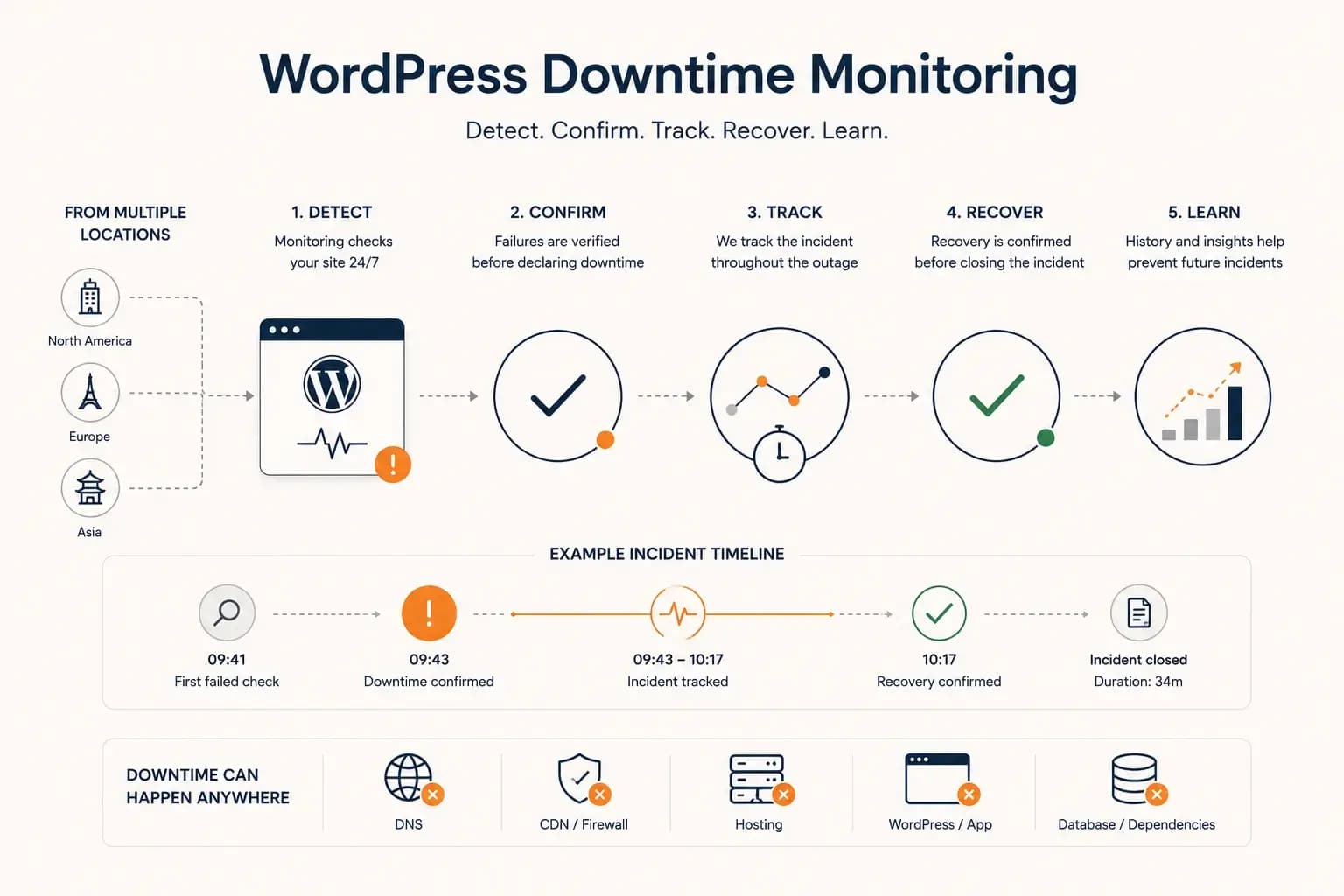
WordPress Downtime Monitoring: How to Detect and Track Outages...
WordPress downtime monitoring goes beyond detecting a failed request. Learn how to confirm real outages, track incidents, verify recovery, and use downtime history to improve reliability.
Learn more about WordPress Downtime Monitoring: How to Detect and Track Outages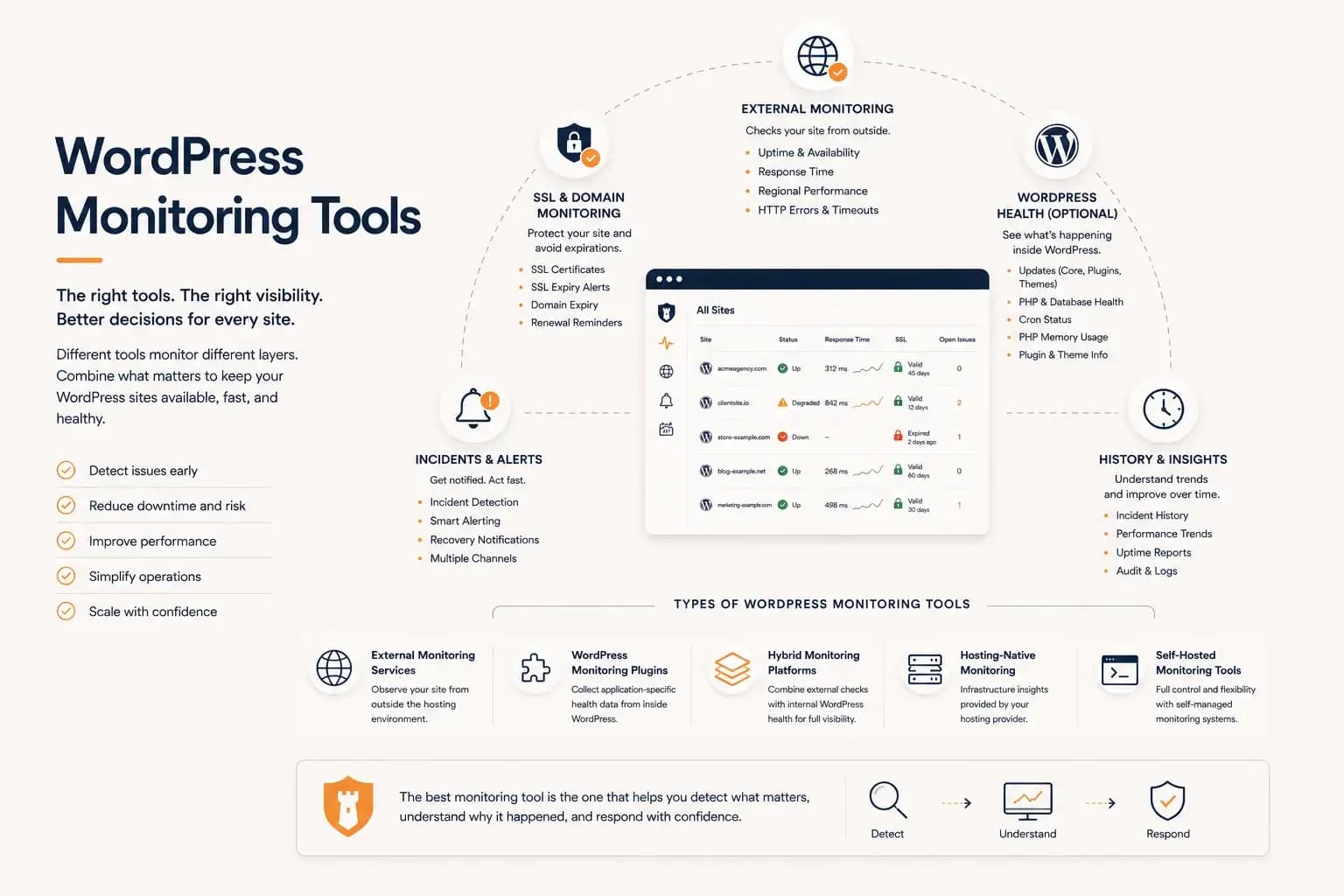
WordPress Monitoring Tools: Complete Guide...
WordPress monitoring tools include external uptime monitoring, WordPress plugins, hybrid monitoring platforms, and hosting-native solutions. This guide explains how they differ, what they monitor, and how to choose the right monitoring workflow for your websites.
Learn more about WordPress Monitoring Tools: Complete Guide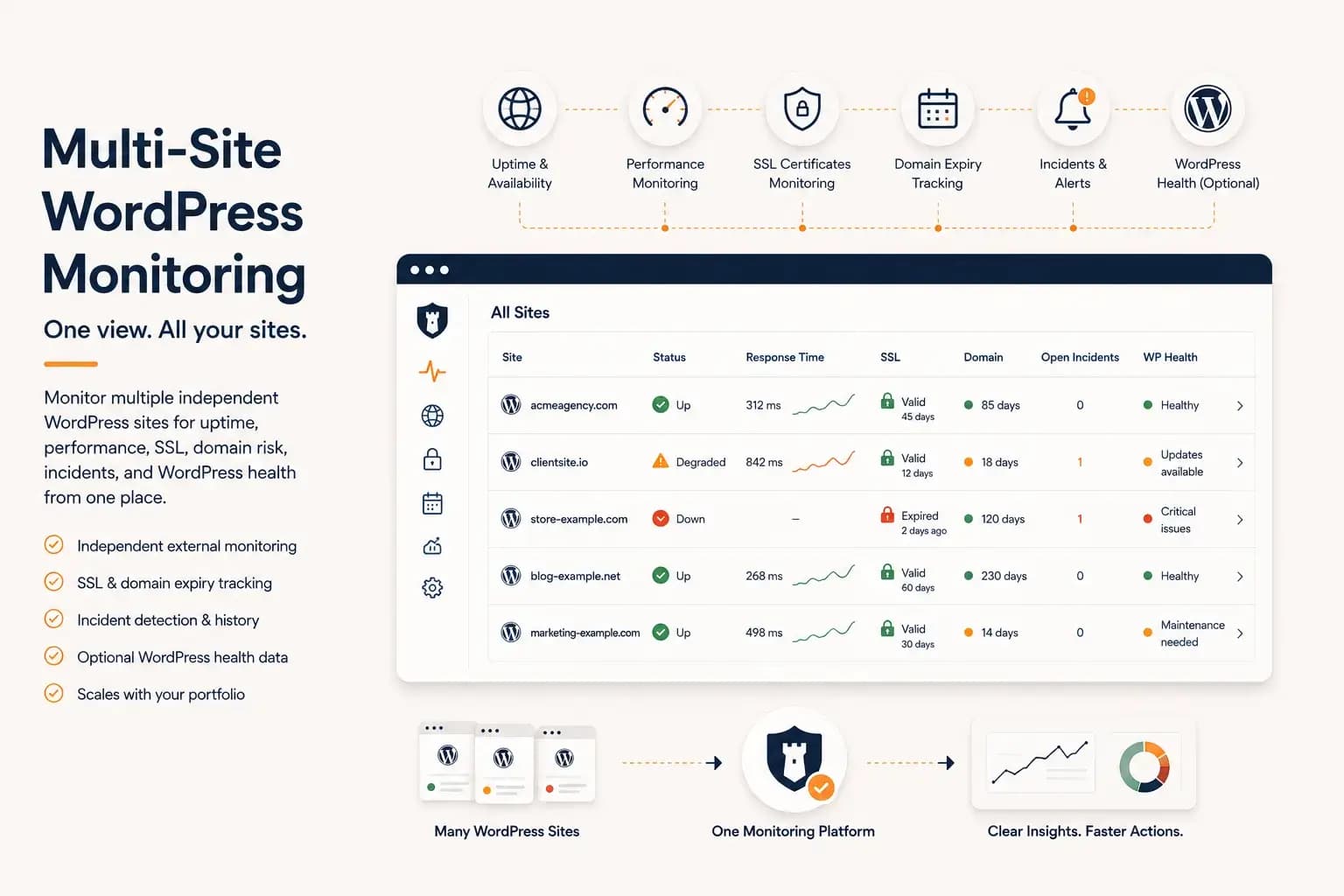
WordPress Multi-Site Monitoring: Manage Multiple Sites Efficiently...
Managing multiple WordPress websites requires more than uptime checks. Learn how to centralize monitoring, reduce operational overhead, and gain visibility into performance, SSL, domains, and WordPress health from a single dashboard.
Learn more about WordPress Multi-Site Monitoring: Manage Multiple Sites Efficiently