

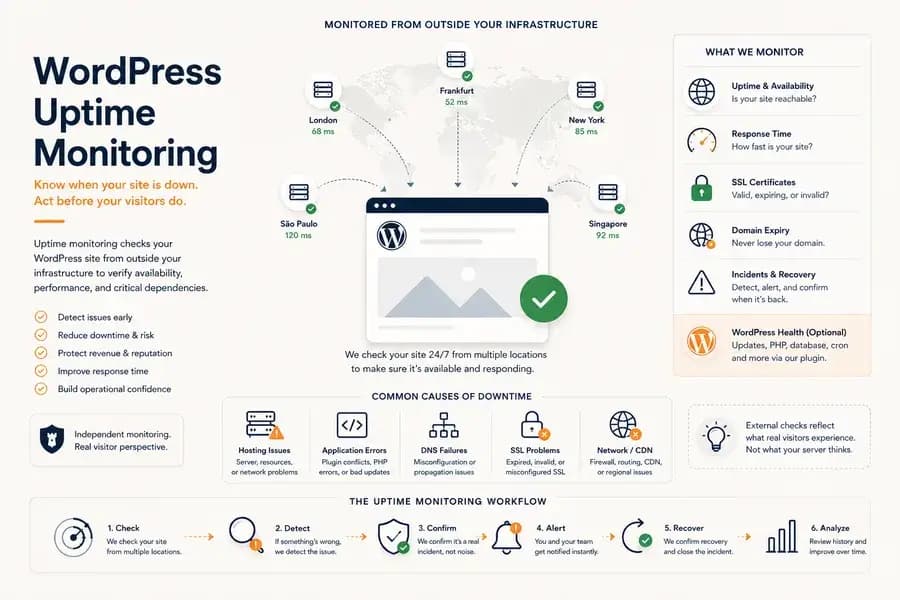
WordPress Uptime Monitoring: Complete Guide for Reliable Sites
- Watchman Tower Team
- Updated: August 6, 2026
- Category: WordPress Monitoring
- Read Time: 7 min
Learn how WordPress uptime monitoring works, why downtime happens, and how to build a reliable monitoring workflow with alerts, performance checks, and WordPress health signals.
WordPress uptime monitoring is the operational foundation of every reliable WordPress website.
Before you can investigate performance issues, troubleshoot plugin conflicts, or optimize user experience, you first need to know one simple fact: can people actually reach your website?
WordPress uptime monitoring continuously checks your website from outside its hosting environment to verify that it is available, responding correctly, and accessible to real visitors.
Modern uptime monitoring goes far beyond reporting whether a website is simply "up" or "down." It helps teams detect incidents earlier, distinguish temporary failures from real outages, understand recovery, and build reliable operational workflows around website availability.
If you are looking for the complete monitoring platform rather than the monitoring concepts, start with our WordPress Monitoring overview.
What Is WordPress Uptime Monitoring?
WordPress uptime monitoring is the continuous process of checking whether a WordPress website is publicly reachable and responding as expected.
A monitoring service periodically sends requests to your website from one or more independent locations and evaluates the result. Depending on the monitoring platform, these checks may verify:
- HTTP response status
- Connection timeouts
- Response time
- DNS resolution
- SSL certificate validity
- Regional availability
- Recovery after an incident
Because these checks originate outside your infrastructure, they reflect what visitors experience rather than what the WordPress application believes is happening internally.
This independent perspective is what makes uptime monitoring the first monitoring layer for most production WordPress websites.
Why WordPress Uptime Monitoring Matters
Downtime rarely begins with an obvious server failure. A website may become unreachable because of DNS problems, expired SSL certificates, routing issues, overloaded infrastructure, failed deployments, or application errors.
Without continuous monitoring, many teams only discover these problems after customers report them or internal staff notice that something feels wrong.
Reliable uptime monitoring reduces that delay by providing immediate operational visibility.
The benefits extend well beyond knowing that a website is unavailable.
- Protect revenue by detecting outages before they affect more customers.
- Reduce response time by identifying incidents immediately.
- Improve operational confidence with independent verification of website availability.
- Maintain historical visibility into incidents, recoveries, and recurring failures.
- Support better troubleshooting with timestamps, locations, and monitoring history.
Uptime monitoring does not solve incidents by itself, but it provides the operational awareness needed to respond before small problems become major outages.
What Causes WordPress Downtime?
WordPress downtime can originate from many different parts of the technology stack. Understanding these failure points helps explain why external monitoring is so valuable.
Hosting Problems
Hardware failures, overloaded virtual machines, exhausted resources, networking issues, or infrastructure maintenance can all prevent visitors from reaching a WordPress website.
Application Errors
Plugin conflicts, incompatible updates, PHP errors, and corrupted database connections may cause WordPress to return server errors or stop responding entirely.
DNS Failures
Incorrect DNS records, propagation issues, or nameserver failures can make an otherwise healthy WordPress installation unreachable.
SSL Certificate Issues
Expired or invalid certificates interrupt secure connections and may prevent visitors from accessing the website normally.
Network and CDN Problems
Firewalls, reverse proxies, CDN configuration errors, or regional routing failures may affect availability even when the origin server remains healthy.
Many of these failures occur outside WordPress itself, making independent monitoring essential.
How WordPress Uptime Monitoring Works
An uptime monitoring service periodically sends HTTP or HTTPS requests to one or more URLs associated with your WordPress website.
During each check, the monitoring platform evaluates several indicators, including:
- Response status
- Connection success or failure
- Response time
- Timeout duration
- Redirect behavior
- Optional content validation
Rather than relying on a single failed request, modern monitoring platforms often confirm incidents using additional checks before generating alerts. This confirmation process helps reduce false positives caused by temporary network interruptions or short-lived server events.
Once an incident is confirmed, monitoring continues until the website recovers, creating a complete operational timeline from failure to restoration.
External Monitoring vs WordPress Plugins
One of the most common misconceptions is that a WordPress monitoring plugin can replace independent uptime monitoring.
In reality, these monitoring approaches solve different problems.
External monitoring verifies that visitors can reach your website. WordPress plugins provide application-specific health information such as plugin updates, PHP memory usage, database health, and cron activity.
Because a plugin runs inside the WordPress application, it may become unavailable during the same outage affecting the website itself.
For that reason, external monitoring should generally form the baseline of every monitoring strategy, while WordPress plugins add valuable operational context for diagnosis and maintenance.
We explain this relationship in detail in WordPress Monitoring Plugin vs External Monitoring.
Building a Reliable WordPress Uptime Monitoring Workflow
Detecting downtime is only the beginning of a reliable monitoring strategy.
A complete uptime monitoring workflow should help teams detect incidents quickly, understand their impact, notify the right people, and confirm when service has recovered.
The strongest workflows usually include several complementary monitoring layers rather than relying on a single uptime check.
Choose an Appropriate Monitoring Frequency
Faster monitoring intervals reduce the time between an outage occurring and the first detection. However, shorter intervals also increase the likelihood of temporary failures triggering unnecessary alerts.
A practical starting point for most production WordPress sites is a one-minute monitoring interval. Business-critical applications may require more frequent checks, while lower-priority websites can often tolerate longer intervals.
Monitoring frequency should always be considered together with confirmation logic rather than in isolation.
Confirm Incidents Before Alerting
Networks occasionally experience brief interruptions that resolve themselves within seconds.
Triggering an incident after the very first failed request often creates unnecessary alert noise.
Reliable monitoring platforms typically confirm failures before declaring an outage. Confirmation may involve repeated requests, additional monitoring locations, or both.
This approach improves confidence in alerts while reducing false positives that interrupt teams without requiring action.
Monitor from Multiple Locations
A website may appear unavailable from one region while remaining fully accessible elsewhere.
Multi-location monitoring helps distinguish between local network problems and genuine service outages.
When every monitoring location reports the same failure, the likelihood of a real incident increases significantly. If only one region reports problems, the issue may instead involve regional routing, CDN configuration, or ISP connectivity.
Monitor More Than Availability
Availability alone does not provide the complete operational picture.
A website can remain online while becoming progressively slower, experiencing SSL problems, or approaching domain expiry.
For most production WordPress websites, uptime monitoring should be combined with:
- Response time monitoring
- SSL certificate monitoring
- Domain expiry monitoring
- Optional WordPress health monitoring
Together, these monitoring layers help detect issues before they become complete outages.
Alerting Is Part of Monitoring
Monitoring creates visibility. Alerting ensures that visibility reaches the people responsible for responding.
A useful alert should communicate more than the fact that something failed. It should provide enough information to help responders understand what happened and begin investigating immediately.
Effective uptime alerts typically include:
- The affected website or monitor
- The incident start time
- The observed failure
- Monitoring locations involved
- Recovery confirmation when service returns
Designing an effective notification workflow is a separate discipline of its own. Our guide to WordPress Uptime Monitoring and Alerting explores alert routing, notification channels, and incident communication in greater detail.
Uptime Monitoring vs Performance Monitoring
Availability answers one question:
Can visitors reach the website?
Performance monitoring answers another:
How well is the website responding?
A WordPress site can remain online while response times increase enough to affect user experience, conversions, and operational reliability.
This is why many teams combine uptime monitoring with response-time analysis rather than treating them as separate operational concerns.
If performance visibility is becoming equally important, continue with our WordPress Performance Monitoring guide.
How Watchman Tower Fits
Watchman Tower approaches WordPress uptime monitoring from the outside in.
Every monitored website starts with independent external monitoring for uptime, response time, SSL certificates, and domain expiry.
Teams that need additional WordPress-specific context can optionally connect the official WordPress plugin to collect internal health signals such as plugin updates, PHP memory usage, database health, and cron activity.
This layered approach separates independent availability monitoring from application-specific diagnostics, allowing each monitoring method to contribute where it provides the greatest value.
Learn more about the complete workflow on our WordPress Monitoring feature page.
Choosing the Right WordPress Uptime Monitoring Strategy
Effective uptime monitoring is not defined by the number of checks a service performs. It is defined by how quickly incidents are detected, how accurately they are confirmed, and how confidently teams can respond.
Independent monitoring should form the foundation. Response-time analysis, alerting, SSL monitoring, domain monitoring, and optional WordPress health signals then build on that foundation to create a complete operational monitoring workflow.
The goal is not simply to know when a website is unavailable. The goal is to understand what happened, respond efficiently, and reduce the likelihood of future incidents.
Free plan available. No credit card needed.
FAQ
What is WordPress uptime monitoring?v
Why is WordPress uptime monitoring important?v
What typically causes WordPress downtime?v
How does WordPress uptime monitoring work technically?v
What's the difference between external monitoring and WordPress plugins for uptime?v
What components make a reliable WordPress uptime monitoring workflow?v
Blog Posts
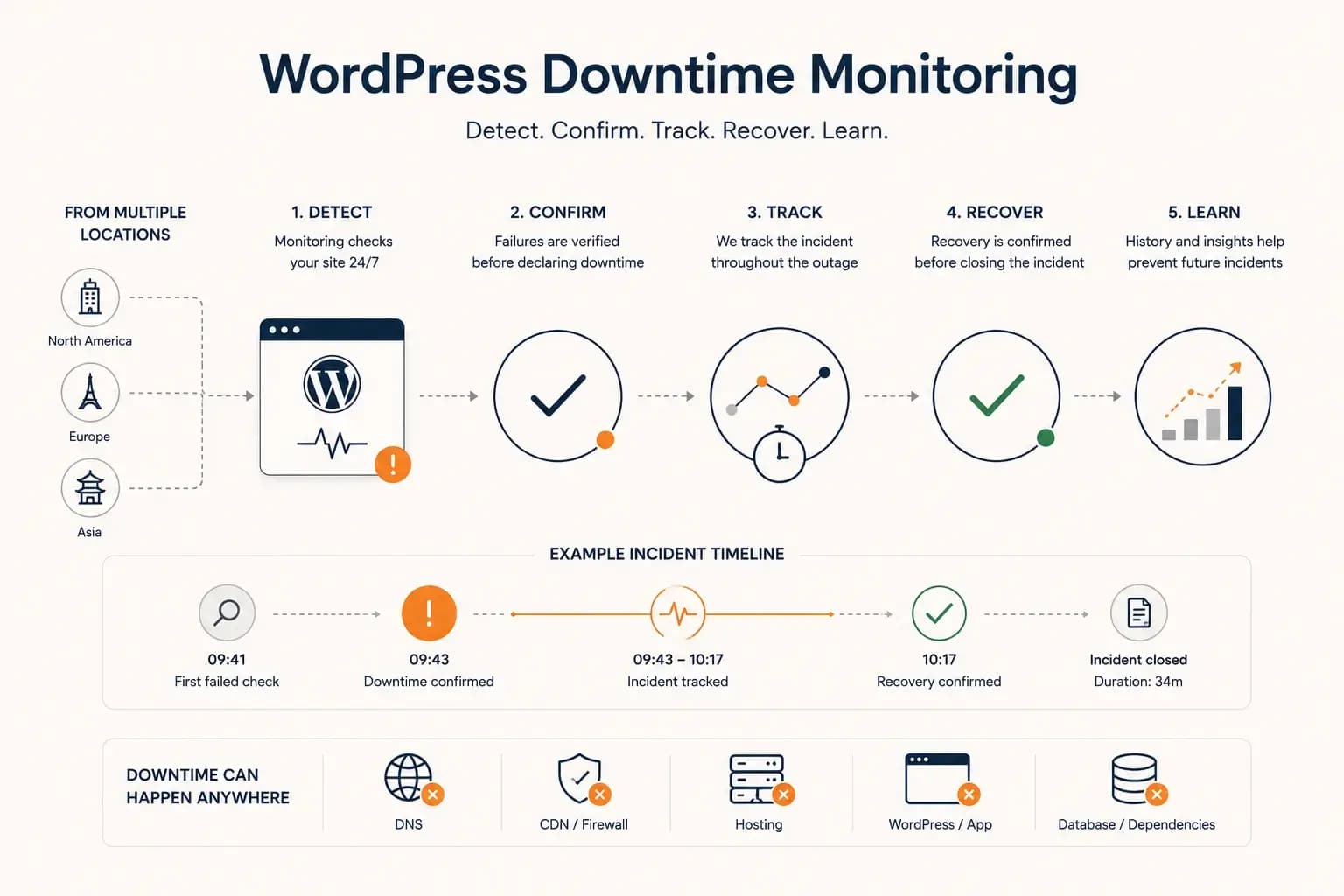
WordPress Downtime Monitoring: How to Detect and Track Outages...
WordPress downtime monitoring goes beyond detecting a failed request. Learn how to confirm real outages, track incidents, verify recovery, and use downtime history to improve reliability.
Learn more about WordPress Downtime Monitoring: How to Detect and Track Outages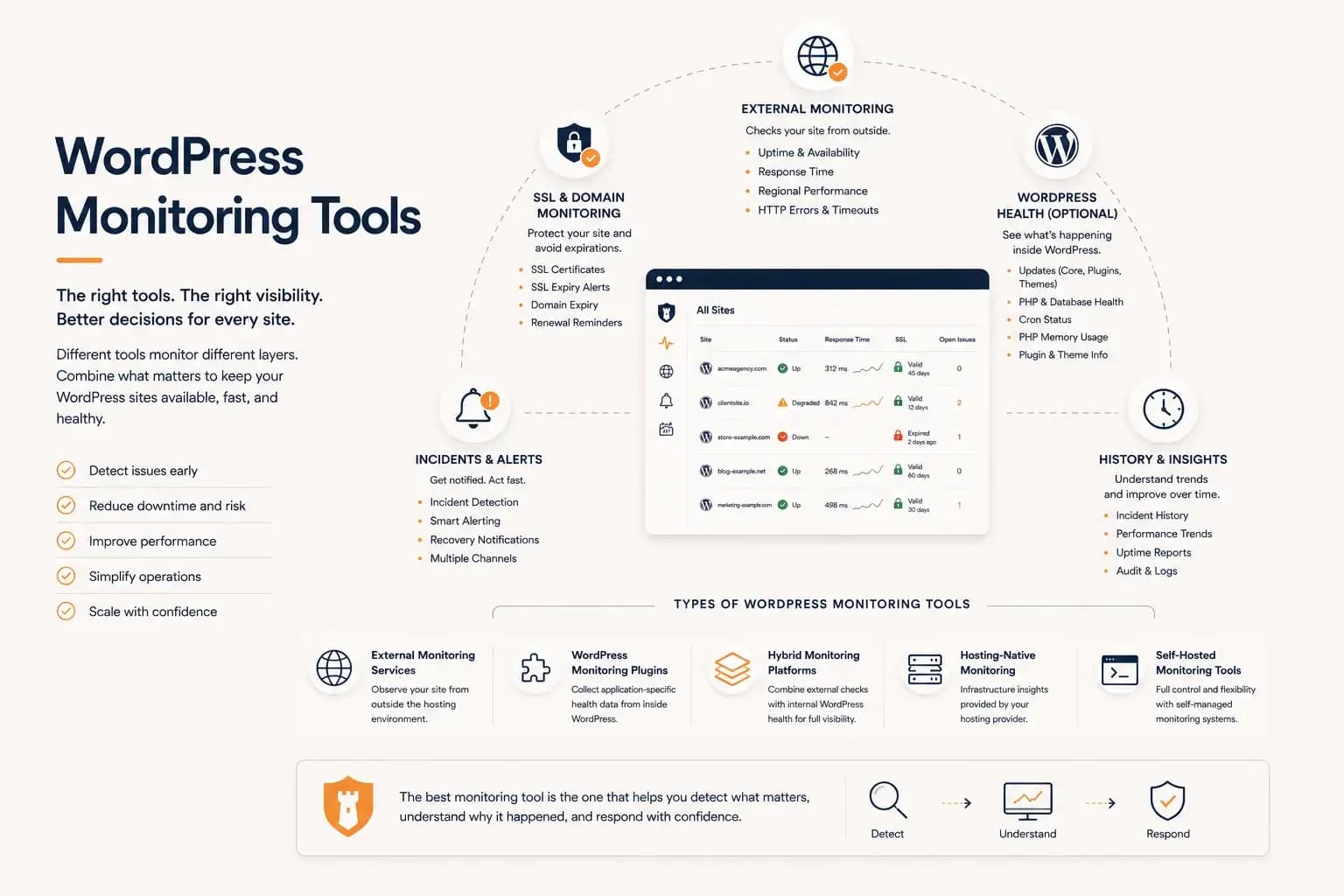
WordPress Monitoring Tools: Complete Guide...
WordPress monitoring tools include external uptime monitoring, WordPress plugins, hybrid monitoring platforms, and hosting-native solutions. This guide explains how they differ, what they monitor, and how to choose the right monitoring workflow for your websites.
Learn more about WordPress Monitoring Tools: Complete Guide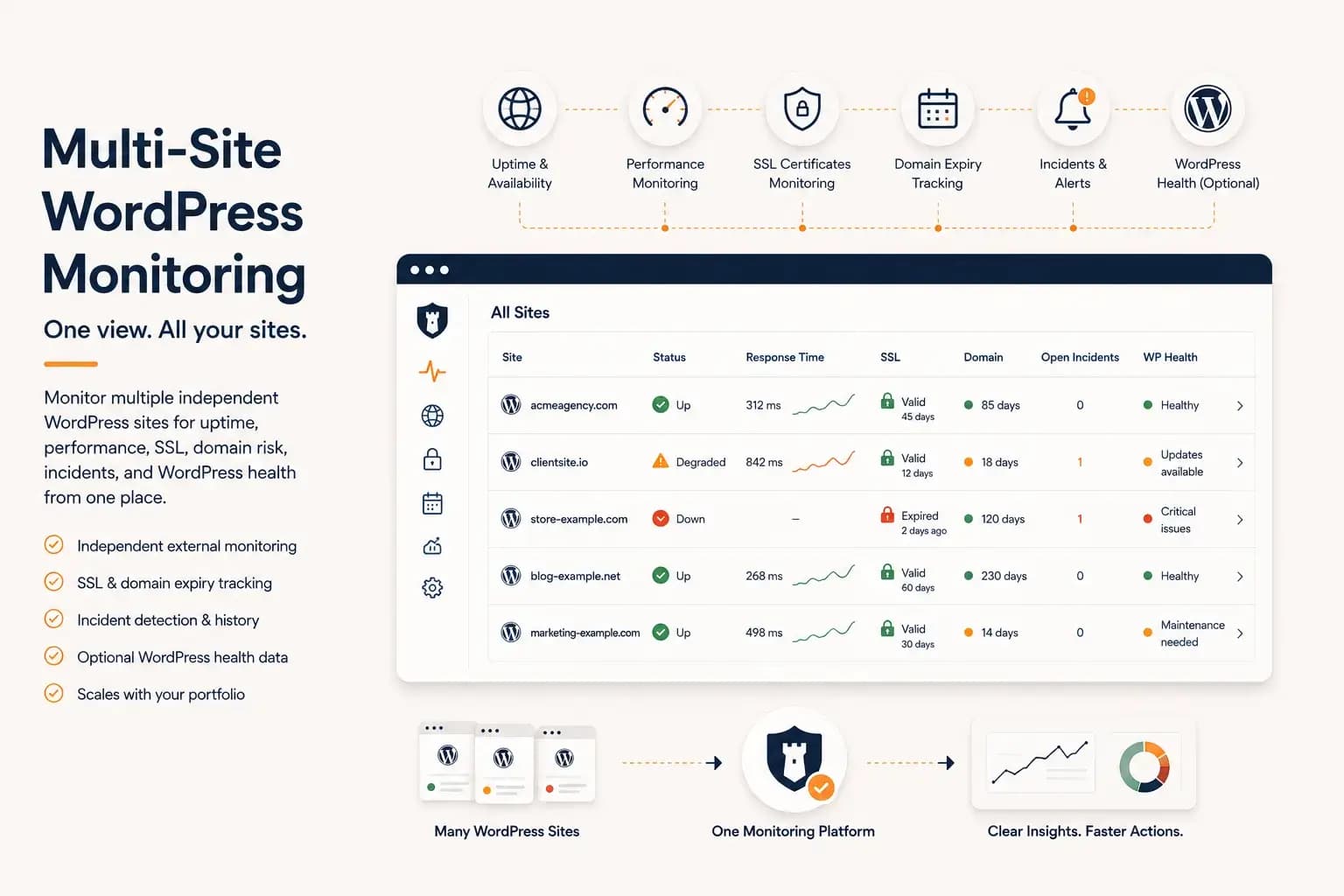
WordPress Multi-Site Monitoring: Manage Multiple Sites Efficiently...
Managing multiple WordPress websites requires more than uptime checks. Learn how to centralize monitoring, reduce operational overhead, and gain visibility into performance, SSL, domains, and WordPress health from a single dashboard.
Learn more about WordPress Multi-Site Monitoring: Manage Multiple Sites Efficiently